Coming November 10Meet IRIS Halo.Talk to IRIS. Keep creating.
BUILT FOR FLORISTS. DIFFERENT BY DESIGN.

The IRIS Difference. Thoughtful details.
More control.

It’s the little things that make a big difference. Discover thoughtful tools designed to give your flower shop more control—without getting in the way of your day.

LOOK CLOSER. SEE THE DIFFERENCE.

The features you miss.
The flexibility you can have again.

Miss the practical features your shop used to rely on? IRIS combines familiar flexibility with modern capabilities—helping you regain the practical control you remember, while moving your shop forward.

Your shop. Your way. The IRIS difference.
01 / ORDERS ON HOLD

Holding & Retrieving orders.

Every flower shop needs the flexibility to pause an order and return to it later. With IRIS, you can place any order on hold at any point during the sale.

IMAGES 1 & 2

Order details & products
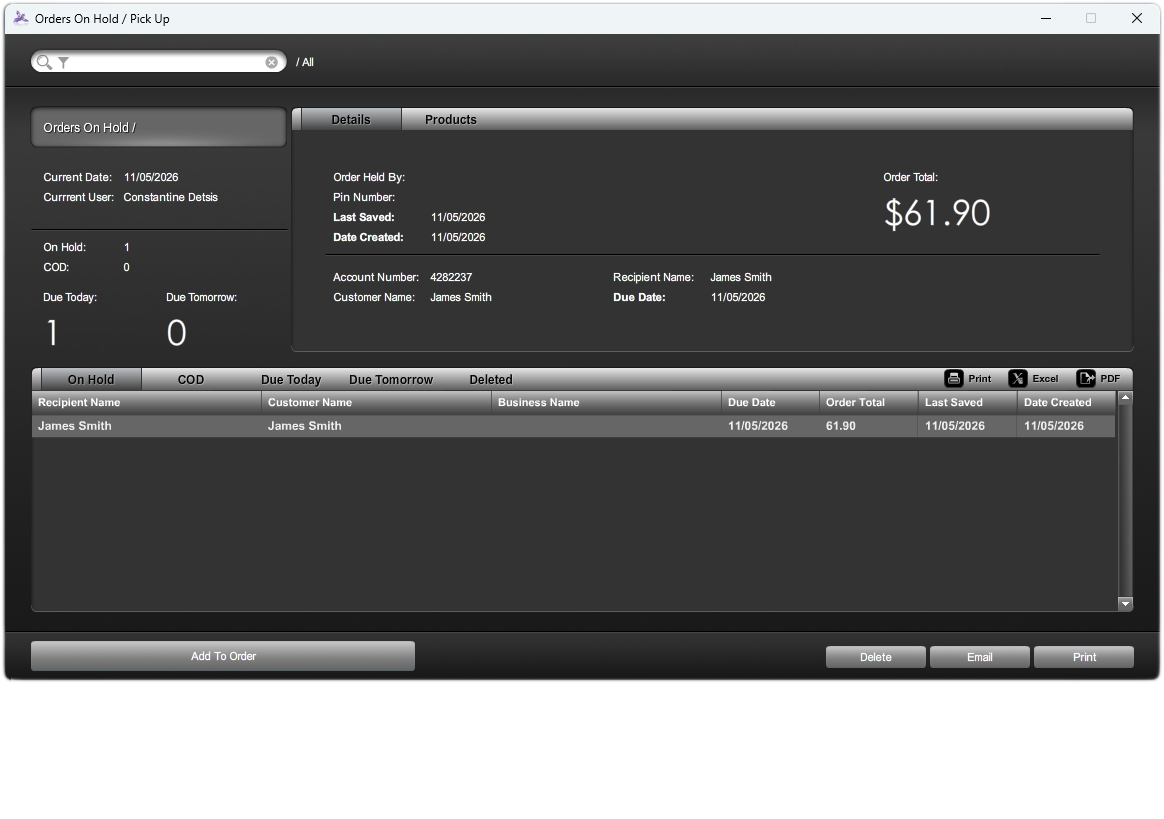
One screen. Every held order.

Quickly view, retrieve and manage orders on hold from one screen. Browse the full list at a glance, or switch between On Hold, COD, Due Today and Due Tomorrow.

The products, one tab away.

Need to check what’s in an order? Select it and switch to the Products tab to see the items. Return to Details whenever you need the order information.

Deleted by mistake? Bring it back.

Accidentally deleted a held order? Open the Deleted tab to find it and restore it.
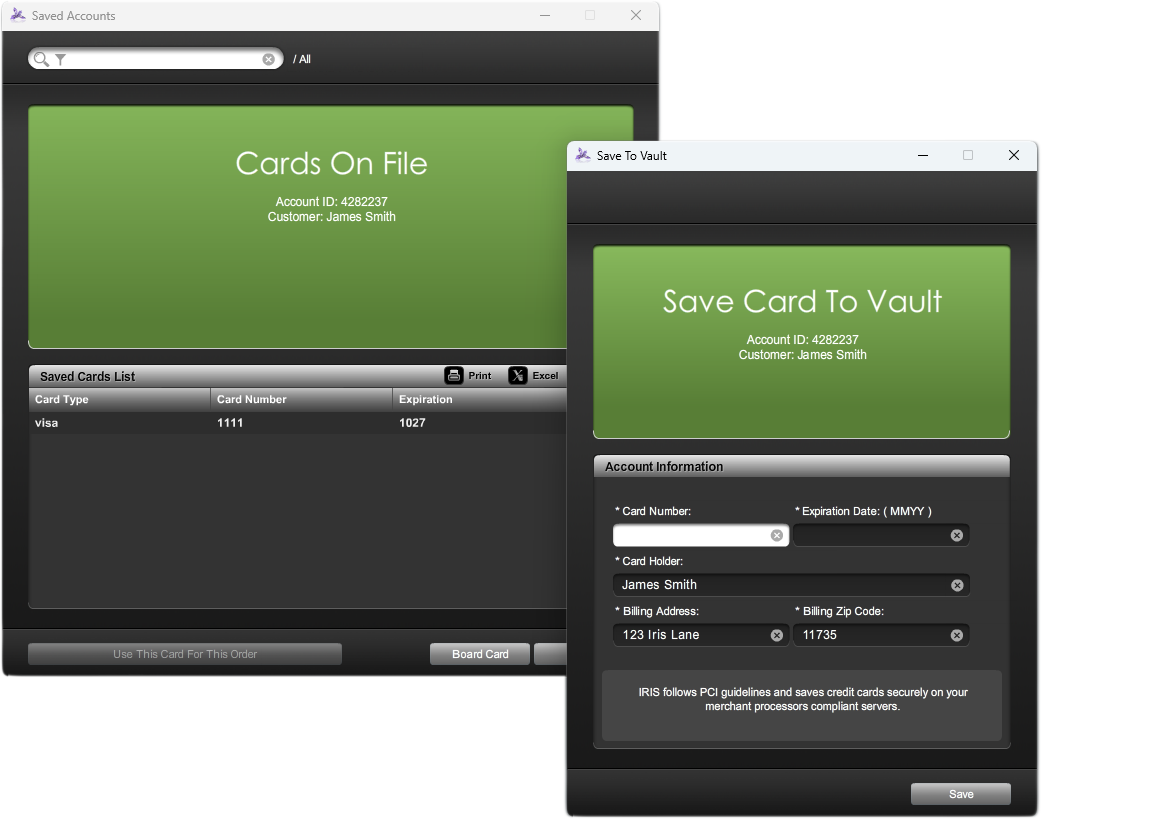
IMAGE 3

Cards on File

IRIS Cards on File and Save Card to Vault windows.
View full-size image Cards on File view

Your shop. Your settings.

These additional options can be enabled in IRIS to tailor what happens when an order is placed on hold.

A card choice, before checkout.

When Prompt Cards on File is enabled, IRIS can display the customer’s saved cards from previous sales after you place an order on hold. Ask which card they’d like to use when completing the sale, so there’s less to sort out at final checkout.

Add a new card while holding the sale.

Enable Save Card to Vault to add a new card to the customer’s profile during the holding process, using tokenization through the PCI-compliant payment platform.

Holding & Retrieving orders

02 / MULTI-ORDER ENTRY

Multi-Order Entry.

One customer. Multiple orders.
Need to place several orders for one customer? Create as many as needed simultaneously, combining delivery, pick-up and standard sales in any mix.

START

Start with a single click.

Always within reach.

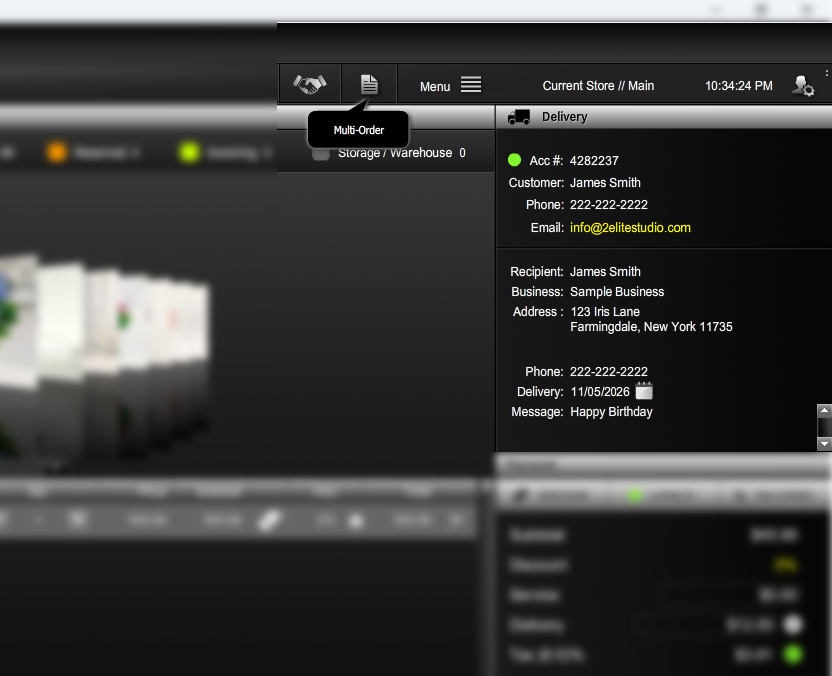
The Multi-Order icon stays visible at the top of your IRIS screen. Simply click it to begin.

Every order, individually tailored.

Set each order’s delivery date and card message individually, and add as many recipients as needed with their own names and addresses.

MANAGE

Every order, clearly in view.

Preview it. Open it. Make it yours.

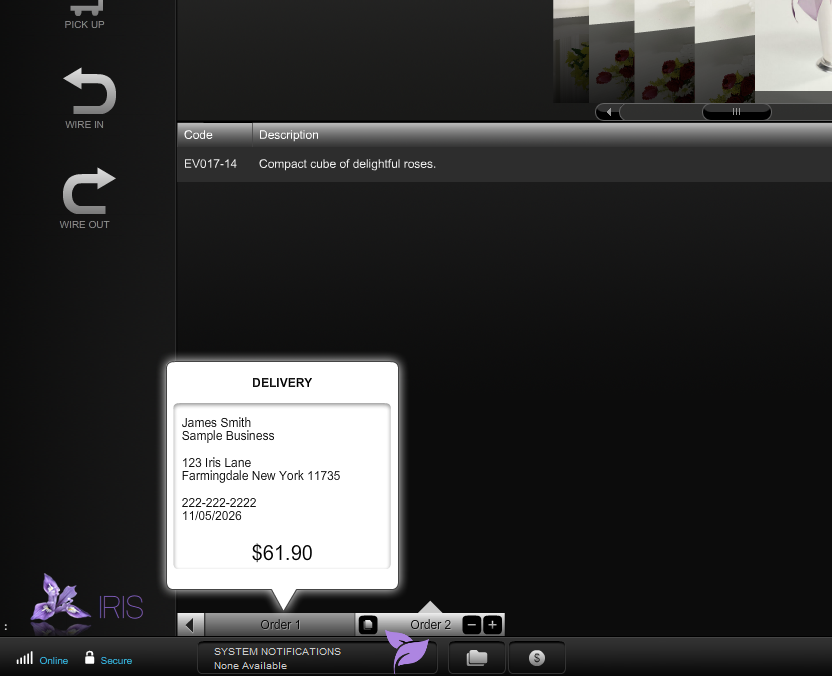
Each order you add to the sale has its own unique number. Hover over its tab for a quick preview, or click the tab to open the full order details and make changes.

Build the next order your way.

Duplicate the previous order in full for a quick starting point, create a blank order from scratch, or remove an order you no longer need.

Multi-Order Entry

03 / INLINE PRODUCT DISCOUNTS

Inline Product Discounts.

The right discount. On the right item.
IRIS offers 14 different ways to discount a sale—and lets you apply discounts directly to individual products.

YOUR OPTIONS

Your pricing. Your control.

Discount by dollar or percentage.

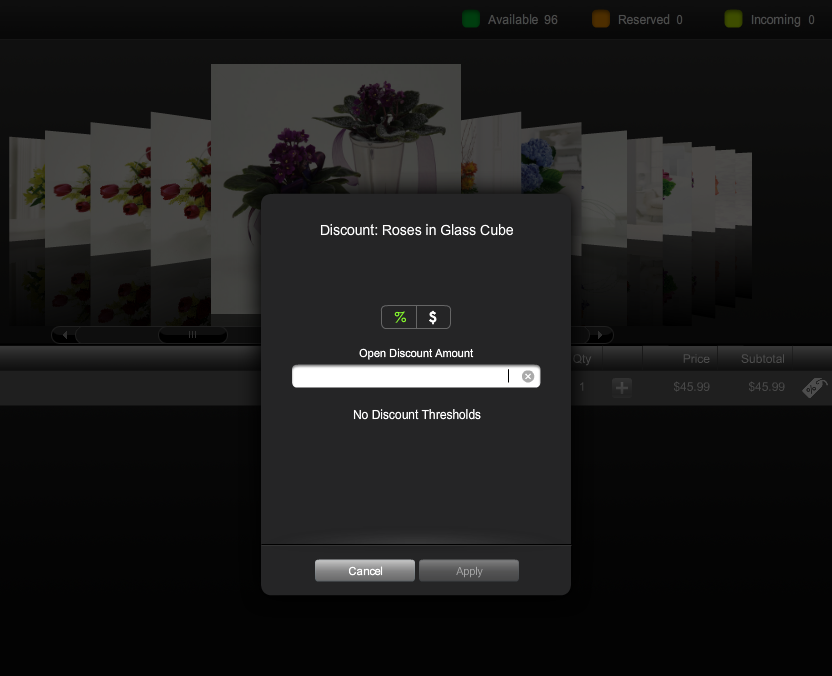
Apply a dollar amount or a percentage discount to a specific line item, right within the sale.

Set the boundaries for each product.

Set per-product discount thresholds to control the level of discounting for each item.

Keep your go-to discounts close.

Create predefined discount lists, then quickly choose the option that fits the situation during the sale.

Inline Product Discounts